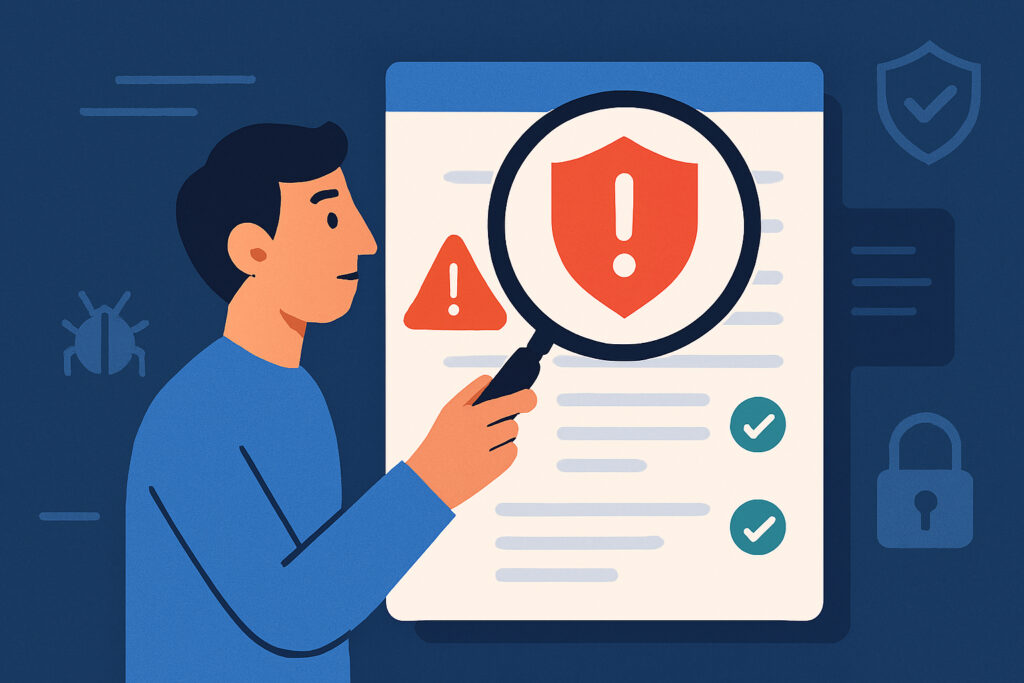
Getting your first security scan report can feel overwhelming. You’re staring at a document filled with technical terms, severity ratings, and vulnerability names that sound like they came from a sci-fi movie. But here’s the thing: understanding these reports isn’t just for security experts. If you run a website or manage any online service, knowing how to interpret scan results is crucial for protecting your business and your users’ data.
I remember the first time I received a comprehensive security report for one of my sites. It was 23 pages long, highlighted 47 issues, and I honestly had no idea where to start. Should I fix everything immediately? Were all these problems equally serious? It took me a few hours and several Google searches to realize that not all vulnerabilities are created equal, and there’s actually a logical way to approach these reports.
Start with the Executive Summary
Most security scan reports begin with an executive summary or overview section. This is your starting point. Don’t skip it. This section typically gives you the big picture: how many vulnerabilities were found, what severity levels they fall into, and sometimes a risk score for your overall security posture.
Look for color-coded severity ratings. These are usually broken down into Critical, High, Medium, and Low categories. Critical and High issues are your immediate priorities. They represent vulnerabilities that could be actively exploited by attackers right now. Medium issues should be addressed soon, while Low severity items can typically wait for routine maintenance windows.
Understanding Vulnerability Descriptions
Each vulnerability in your report will have a name and description. These might include terms like “SQL Injection,” “Cross-Site Scripting (XSS),” or “Outdated TLS Configuration.” Don’t panic if you don’t recognize these terms immediately.
The key information to extract from each vulnerability listing includes:
The affected component – which part of your website or application has the problem. This might be a specific plugin, a server configuration, or a piece of code.
The actual risk – what could happen if this vulnerability is exploited. Good reports explain this in plain language, not just technical jargon.
The remediation steps – what you need to do to fix it. This is the most important part.
Prioritizing Your Response
Here’s where many people make their first mistake: trying to fix everything at once. I’ve done this myself. I once spent an entire weekend patching Low severity issues while a High severity vulnerability sat unaddressed simply because I worked through the report from top to bottom without thinking strategically.
Create a priority list based on these factors:
Severity level first – Always tackle Critical and High severity issues before anything else.
Exposure second – Is the vulnerable component publicly accessible? A vulnerability in your admin panel that’s properly protected is less urgent than one in your public-facing contact form.
Ease of exploitation – Some vulnerabilities require sophisticated attacks, while others can be exploited with basic tools. Reports sometimes include CVSS scores that help gauge this.
Common Vulnerability Types You’ll Encounter
After reviewing hundreds of security reports over the years, I’ve noticed certain issues appear repeatedly. Understanding these common patterns helps you respond more effectively.
Outdated software is probably the most frequent finding. Whether it’s WordPress, plugins, PHP versions, or SSL/TLS configurations, keeping everything updated is fundamental security hygiene. These fixes are usually straightforward – update to the latest stable version.
Missing security headers are another common issue. These are configuration settings that tell browsers how to handle your website’s content. Adding headers like Content-Security-Policy or X-Frame-Options often requires just a few lines in your server configuration.
Authentication weaknesses might include things like lack of two-factor authentication, weak password policies, or exposed admin login pages. These require policy changes as much as technical fixes.
Breaking Down the Technical Jargon
One myth I’d like to dispel: you don’t need to become a security expert to act on these reports. You do need to understand enough to make informed decisions and communicate effectively with whoever is implementing the fixes.
When you encounter an unfamiliar term, look for the CVE (Common Vulnerabilities and Exposures) number if one is provided. You can search this online for detailed explanations and real-world examples of how the vulnerability has been exploited.
Pay attention to “proof of concept” sections if they’re included. These show exactly how the vulnerability could be exploited, which helps you understand the real-world impact.
False Positives and Context Matters
Not everything flagged in a security report is necessarily a problem in your specific context. Automated scanners sometimes report false positives or flag issues that don’t apply to your particular setup.
For example, I once had a scanner flag a “subdomain takeover vulnerability” for a subdomain that was intentionally parked and not in use. The finding was technically correct, but the risk was minimal in my case. Still, I addressed it because even low-risk issues can become problems later.
If something doesn’t make sense or seems irrelevant, don’t just ignore it. Verify with someone who knows your infrastructure, or research whether the finding actually applies to your situation.
Creating an Action Plan
Once you understand what’s in your report, document your action plan. I keep a simple spreadsheet with columns for: vulnerability name, severity, affected component, planned fix, responsible person, and target completion date.
For Critical issues, set a 24-48 hour deadline. High severity items should be addressed within a week. Medium issues can typically wait 2-4 weeks, and Low severity findings can be batched into your regular maintenance schedule.
Common Questions About Security Reports
How often should I run security scans? For most websites, weekly scans are sufficient. If you run an e-commerce site or handle sensitive data, consider daily scans.
Do I need to fix every single issue? Focus on Critical and High severity issues first. Medium and Low issues should be addressed, but they’re rarely urgent.
What if I don’t have technical skills to implement fixes? Security reports are valuable communication tools. Share them with your developer, hosting provider, or IT team. The report gives them exactly what they need to know.
Can I trust automated scanners completely? Automated scans are excellent first-line defense, but they’re not perfect. They catch common vulnerabilities reliably but might miss complex, application-specific issues.
Security scan reports aren’t meant to intimidate you – they’re tools that help you protect what you’ve built. Start with the high-priority items, work systematically through the list, and don’t hesitate to ask for help when you need it. Your future self will thank you for taking the time to understand and act on these findings.