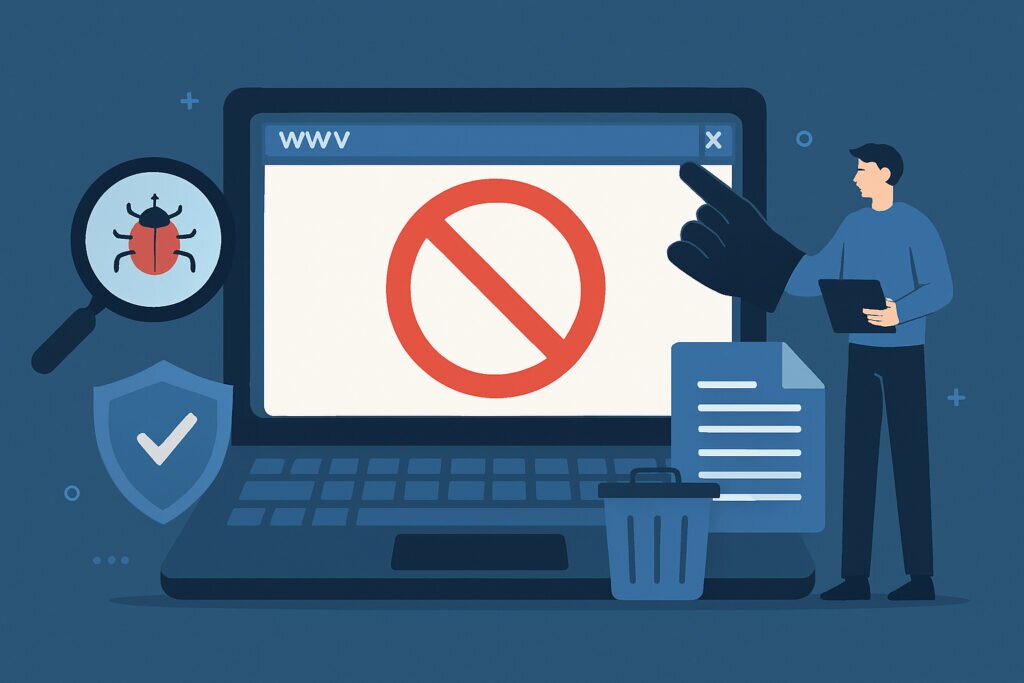
Discovering that your website has been blacklisted is one of those gut-wrenching moments that can happen to any website owner. One day everything is running smoothly, and the next, your traffic has plummeted, browsers are showing scary warning messages to your visitors, and your search rankings have disappeared. Website blacklisting isn’t just a technical inconvenience – it’s a serious threat to your business reputation, customer trust, and revenue. The good news is that blacklisting can be detected, understood, and most importantly, reversed if you know what steps to take.
What Does Website Blacklisting Actually Mean?
Website blacklisting happens when search engines, security services, or browsers identify your site as potentially harmful to visitors. This typically occurs because your website has been compromised by malware, is hosting phishing content, or is distributing malicious software. When a site gets blacklisted, major players like Google Safe Browsing, Norton Safe Web, or McAfee SiteAdvisor flag it as dangerous, which triggers warning messages in browsers and removes your site from search results.
The impact is immediate and severe. Chrome and Firefox will display full-page warnings that scare away visitors before they even reach your content. Your organic search traffic can drop by 95% or more overnight. Email providers may start blocking messages from your domain. For an e-commerce site, this can mean thousands in lost revenue per day.
Common Reasons Why Websites Get Blacklisted
Blacklisting doesn’t happen randomly. There are specific triggers that security services look for. Malware infections are the most common culprit – hackers inject malicious code into your website files or database, often through outdated plugins or weak passwords. I’ve personally dealt with a WordPress site that got infected through a vulnerable theme file that hadn’t been updated in over a year.
Phishing content is another major reason. Sometimes hackers upload fake login pages to your server to steal credentials from unsuspecting users. Your site might be hosting these pages without you even knowing they exist, buried in obscure directories.
Suspicious outbound links can also trigger blacklisting. If your site suddenly contains hundreds of links to pharmaceutical websites or gambling sites (classic signs of a hack), security scanners will flag this behavior. Additionally, poor hosting neighbors can affect you – if you’re on shared hosting and another site on the same server gets compromised, it can sometimes impact your reputation too.
How to Check If Your Site Is Blacklisted
The first step is confirming whether you’re actually blacklisted and by whom. There are several ways to check this quickly.
Google Safe Browsing is the most important one to check since it powers warnings in Chrome, Firefox, and Safari. Visit Google’s Transparency Report at transparencyreport.google.com/safe-browsing/search and enter your domain. This tool will tell you immediately if Google has flagged your site.
Norton Safe Web and McAfee SiteAdvisor are other major security services that maintain their own blacklists. Simply search for your domain on their respective websites to see your status.
For a more comprehensive check, use multi-scanner services that query dozens of blacklists simultaneously. Services like VirusTotal will scan your URL against 70+ security vendors and show you exactly which ones have flagged your site. This is incredibly useful because different security services may detect different issues.
You should also check your Google Search Console account. Google will send security issue notifications there if they detect problems with your site. Look under the Security & Manual Actions section for any alerts.
Identifying the Root Cause
Before you can get delisted, you need to find and fix the underlying problem. Start by scanning your website files for malware and suspicious code. Run a thorough security scan using tools that check for known malware signatures, backdoors, and unauthorized file modifications.
Check your website’s source code through your browser’s developer tools. Look for suspicious JavaScript, hidden iframes, or encoded scripts that shouldn’t be there. Pay special attention to your header and footer files, as these are common injection points.
Review your server access logs to identify unusual activity. Look for unauthorized FTP or SSH logins, strange POST requests, or access to files that normally wouldn’t be accessed by legitimate users. The logs might reveal when and how the breach occurred.
Don’t forget to check your database for injected content, especially in your posts, pages, and user comments. I once found a site where hackers had injected malicious JavaScript into every single post title in the database – over 500 entries that needed cleaning.
Cleaning Your Infected Website
Once you’ve identified the malware or malicious content, it’s time to clean up. If you have a recent, clean backup from before the infection, restoring from backup is often the fastest solution. However, make sure the backup isn’t already infected by checking its date against when the problems started.
For WordPress sites, replace all core files with fresh downloads from wordpress.org. Delete and reinstall all plugins and themes from official sources. This ensures you’re starting with clean code. Change all passwords – this includes your hosting account, FTP, database, WordPress admin, and any other access points.
Remove any suspicious files you’ve identified, but be careful not to delete legitimate system files. When in doubt, compare your files with a clean installation. Check file permissions and make sure they’re set correctly – overly permissive permissions can allow hackers to modify files.
Update everything to the latest versions. This includes your CMS, plugins, themes, and server software. Many hacks exploit known vulnerabilities in outdated software.
Submitting Removal Requests
After thoroughly cleaning your site, it’s time to request removal from blacklists. For Google Safe Browsing, use Google Search Console to request a review. Navigate to the Security Issues report, and once you’ve fixed all issues, click the “Request Review” button. Be detailed in your explanation of what you found and how you fixed it.
For other security services, the process varies. Norton Safe Web has a site re-evaluation form on their website. McAfee requires you to claim your site and then request a review through their SiteAdvisor system. Some services will automatically re-scan your site after a period of time, but requesting a manual review speeds up the process.
Be patient but persistent. Reviews can take anywhere from a few hours to several days. Google typically responds within 72 hours, though it can be faster if the issue is straightforward.
Preventing Future Blacklisting
Getting delisted is just the beginning. You need to prevent it from happening again. Implement automated daily security scanning that checks for malware, vulnerabilities, and configuration issues. This gives you early warning before problems escalate to blacklisting.
Keep everything updated with automatic updates where possible. Use strong, unique passwords and enable two-factor authentication on all administrative accounts. Install a web application firewall to block common attack patterns.
Regular backups are your safety net. Keep multiple backup copies stored in different locations, and test your backups periodically to make sure they actually work when you need them.
Limit user access and follow the principle of least privilege – only give people the access they absolutely need. Monitor your website for unauthorized changes using file integrity monitoring tools.
Consider using a security service that provides continuous monitoring and protection. Services like ScanVigil perform over 150 different security tests daily, checking for vulnerabilities before they can be exploited by attackers.
Common Mistakes to Avoid
One mistake I see repeatedly is website owners requesting a review before properly cleaning their site. The security services will simply reject your request and may flag you as uncooperative, which can delay the process further.
Don’t just delete visible malware and call it done. Hackers often install backdoors that allow them to regain access even after you’ve cleaned up. You need to find and close all entry points.
Another common error is ignoring less obvious security issues. Just because your site looks fine on the surface doesn’t mean it’s clean. Malware can be hidden in database tables, image files, or encoded in seemingly innocent code.
Frequently Asked Questions
How long does it take to get removed from a blacklist? Google typically processes requests within 72 hours, while other services may take up to a week. Automated re-scans can happen within 24-48 hours for some services.
Will my search rankings return immediately after delisting? Unfortunately, no. While the warning messages will disappear, rebuilding your search rankings and visitor trust takes time, often several weeks or months.
Can I prevent blacklisting completely? While you can’t guarantee 100% protection, implementing proper security measures dramatically reduces your risk. Regular scanning, updates, and monitoring catch most issues before they lead to blacklisting.
Should I hire a professional? If you’re not technically confident or the infection is severe, hiring a security professional is worth considering. They can ensure thorough cleanup and proper hardening of your site.
Getting blacklisted is stressful, but it’s not the end of your website. With systematic checking, thorough cleaning, and proper prevention measures, you can recover from blacklisting and protect your site going forward. The key is acting quickly, being thorough in your cleanup, and implementing strong security practices to prevent future incidents.