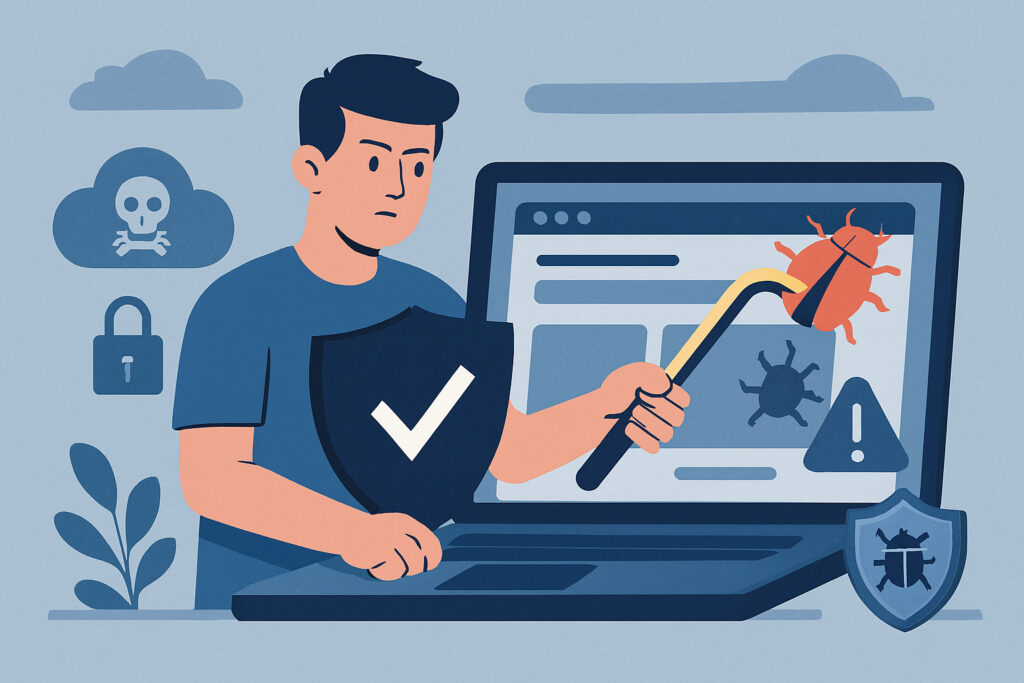
Discovering malware on your website feels like finding someone has broken into your home. Your heart sinks, your mind races with questions about data loss and customer safety, and you’re not quite sure where to start. I’ve been there myself – staring at a compromised WordPress site at 2 AM, knowing that every minute of downtime was costing my client both money and reputation. The good news? With the right approach, you can clean your site thoroughly and prevent future infections.
Understanding What You’re Dealing With
Before you start removing anything, you need to know what type of malware has infected your site. Common types include backdoors that let hackers maintain access, spam injectors that add hidden links to your pages, redirect scripts that send visitors to malicious sites, and credential stealers that harvest user login information.
I once dealt with a particularly sneaky infection that only showed itself to search engine crawlers – visitors saw nothing wrong, but Google had already blacklisted the site. The malware was injecting pharmaceutical spam links into the page footer, visible only to bots. This taught me that malware doesn’t always announce itself loudly.
Take Your Site Offline Immediately
Your first instinct might be to start digging through files while the site is live, but this is a mistake. Put up a maintenance page and take the site offline. This prevents the malware from spreading further, stops potential data theft, and protects your visitors from being infected themselves.
Some people worry about the SEO impact of downtime, but Google understands when sites are being repaired. A few hours offline is infinitely better than weeks of being blacklisted for malware distribution.
Create a Complete Backup Before Touching Anything
Even though your site is infected, back it up completely before you start cleaning. This might sound counterintuitive, but you need this infected backup as a reference point. If you accidentally delete something important during cleanup, you can retrieve it from this backup.
Store this backup separately from your regular backups and label it clearly as “INFECTED – DO NOT RESTORE.” I typically keep these quarantined backups for at least three months after cleanup.
Identify All Infected Files
This is where the real detective work begins. Malware rarely exists in just one file – it usually creates multiple entry points to ensure persistence even if you find and remove some of them.
Start by checking file modification dates. If core WordPress files show recent modifications, that’s a red flag. Compare your current files with clean versions from wordpress.org. Look for suspicious file names in your wp-content directory – things like “wp-content.php” or “hello.php” are common malware disguises.
I always search for base64_decode, eval, and gzinflate functions in PHP files. While these can be legitimate, they’re frequently used to obfuscate malicious code. One site I cleaned had over 200 infected files, each containing a tiny snippet of encoded malware that worked together as a network.
Check Your Database Tables
Malware doesn’t just live in files. Check your WordPress database for injected admin users, modified option values, and suspicious content in posts and pages. The wp_options table is a favorite hiding spot, particularly in theme and plugin settings that rarely get checked.
Use phpMyAdmin or a similar tool to search for common malware signatures like “eval(” or suspicious URLs. I once found malware hidden in a serialized array in the wp_options table – it looked like gibberish until properly decoded.
Remove the Malware Systematically
Don’t just delete files randomly. Start with the obvious infections and work your way through systematically:
Delete any files that shouldn’t exist at all. Replace all WordPress core files with fresh copies from wordpress.org – don’t skip this step thinking your core files look clean. Remove and reinstall all plugins from trusted sources. If you’ve customized plugins, you’ll need to carefully extract your customizations from the backup and add them to clean plugin files. Do the same with your theme – download a fresh copy and reapply your customizations carefully.
Update Everything and Change All Credentials
Outdated software is the most common entry point for malware. Update WordPress core, all plugins, and your theme to their latest versions. Then change every password and access credential associated with your site – WordPress admin accounts, FTP credentials, database passwords, and hosting control panel access.
Generate new security keys and salts in your wp-config.php file. This forces all users to log in again, which kicks out any malware-created sessions.
Harden Your Site Against Future Attacks
Cleaning malware is pointless if you don’t fix the vulnerability that allowed it in. Disable file editing from the WordPress dashboard, implement proper file permissions (644 for files, 755 for directories), add security headers to your .htaccess file, and consider a web application firewall.
I recommend implementing automated security scanning – this is where services like ScanVigil become invaluable. Running 150+ daily security tests across your site catches new infections before they can establish themselves.
Common Mistakes to Avoid
Never restore from a backup without verifying it’s clean. I’ve seen people restore an infected backup, cleaning the same malware three times before realizing the backup itself was compromised. Don’t rely solely on automated malware scanners – they miss things. Use them as a starting point, but always do manual verification. And don’t assume one infected file means one infection. Malware typically creates redundant access points.
When to Call for Professional Help
If you’ve followed these steps and still see infections reappearing, or if the malware has corrupted critical data, it’s time to bring in professionals. Some infections are sophisticated enough that they require specialized tools and expertise to fully eradicate.
Frequently Asked Questions
How long does malware removal typically take? For a standard WordPress site, expect 4-6 hours for thorough cleanup. Complex sites with custom code might take considerably longer.
Will Google automatically remove my site from their blacklist? After cleaning, request a review through Google Search Console. Approval usually takes 1-3 days if the malware is completely gone.
Can malware spread to my computer? Yes, some website malware can infect your local machine through FTP connections. Always scan your computer after dealing with infected sites.
Should I notify my users? If there’s any possibility of data theft, yes – transparency builds trust and helps users protect themselves.
Cleaning malware from your website isn’t fun, but it’s absolutely doable with patience and the right approach. The key is being thorough and not rushing the process. Take your time, document what you find, and implement proper security measures to prevent it happening again.